
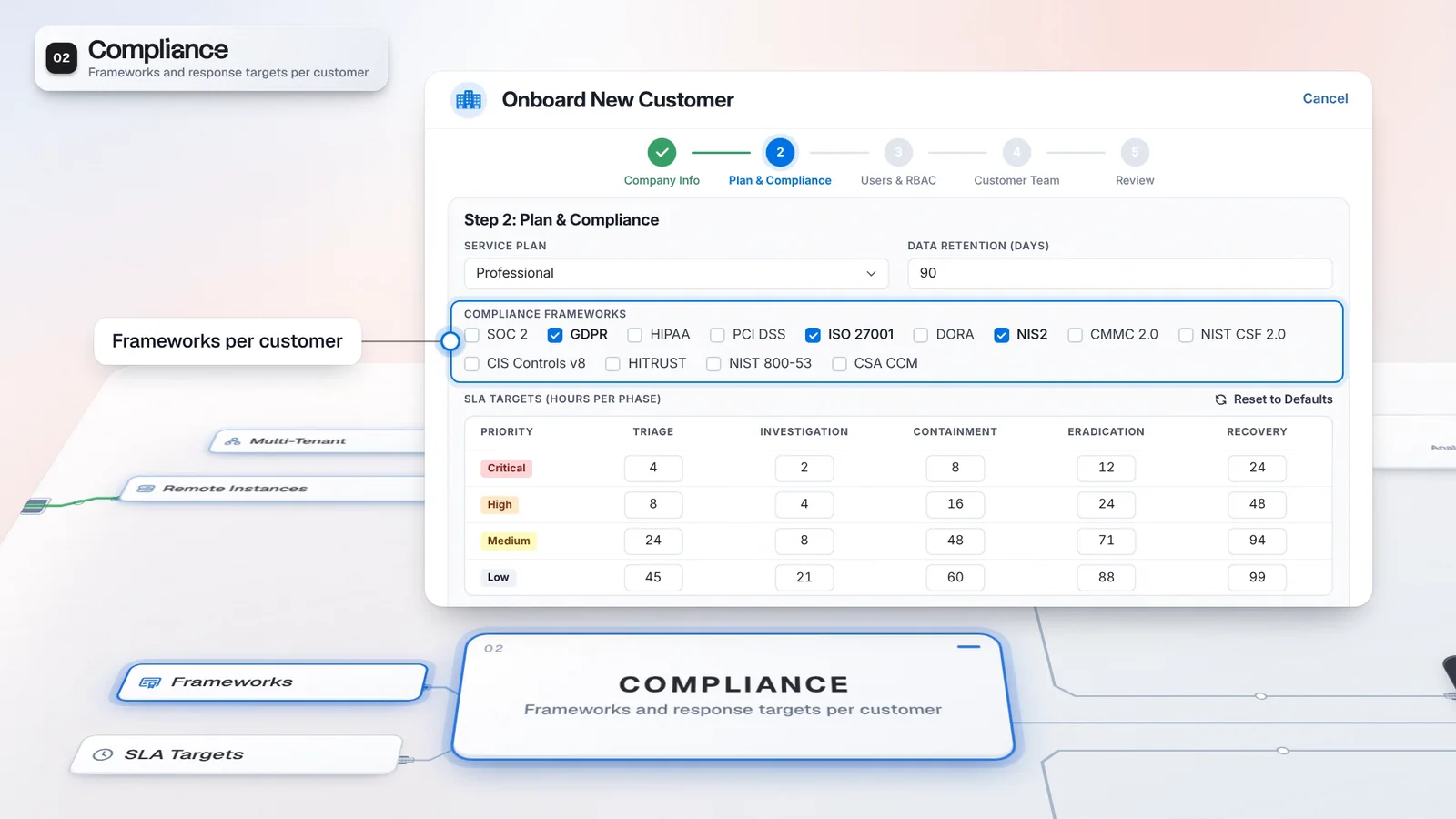
 Start with onboarding


A place for customer updates
Customers return to requests and permitted cases to follow their work.
Give each customer a place to follow requests and permitted cases in the Self-Service Portal. Tenant context scopes supported views, while the portal configuration shapes the customer workflow, so your team can provide a shared point of reference for the work it delivers.
Requests and permitted security cases related to the organization.
Privileged account activity is under investigation.
 A. Rivera is reviewing the sign-in evidence.
Security cases related to your organization.
Security cases related to your organization.
Security cases related to your organization.
Start with the Northstar case in the provider workspace.
Switch the illustration to Northstar customer context and review the visible case sections.
Read the Summary and Timeline in the customer view. This is an illustrative configuration.
Each portal shows its own permitted cases. The two customer views are shown side by side for comparison.
A customer should be able to follow its own work without entering your provider workflow. The Self-Service Portal gives customers access to requests and permitted security cases related to their organization.
Enable and configure the customer request portal for the tenant you serve. Customers use My Requests to follow submitted work and Cases to follow permitted security cases. Review access alongside the service catalog and approval rules during setup, so both teams have a shared reference for the work.
Customers follow their own requests and cases without entering your provider workflow.
Illustrative customer and values. Not customer performance data.
Customers return to requests and permitted cases to follow their work.
Configure customer access around the tenant and service it receives.
Set up the customer workflow, then check what the customer can follow. Tenant context and permitted cases define the scope; review the configuration as part of onboarding rather than relying on the provider view.
Enable and configure the customer request portal for the tenant.
Choose the request types and forms the service offers, with their approval rules.
Check that the customer can follow submitted work in its context.
Review the permitted security cases related to the customer organization.
Tenant context scopes supported views, API operations and connector credentials. Confirm permissions and the required data boundary during architecture review.
Casebook keeps the investigation record for your operators. The separately enabled customer portal gives customers access to their requests and permitted cases, while The Portal edition supports the provider workflow.
Customer-facing access is configured separately from the edition and its module entitlements.
A defined customer view gives both sides a place to return for context. Review access during setup and use the permitted case record to support the service conversation.
Give the customer a place to follow its submitted requests and case work.
Check the customer tenant and permissions before using the portal.
Use the permitted case to keep the customer conversation tied to the work.
Select a request type and case your service needs the customer to follow.
Review the configured portal in that customer context.
Confirm the customer knows where to follow requests and permitted cases.
Multi-tenant mode uses tenant context to scope supported views, API operations and connector credentials. Customer profiles let you configure separate service connections. Authorized provider operators and administrators can access the customer scope assigned to them. Confirm the required data boundary, permissions and deployment arrangement for each customer during architecture review.
Customers can browse the Service Catalog, follow their requests and view permitted security cases related to their organization. Enable and configure the customer request portal for the service you deliver.
The Portal is a provider edition. The Self-Service Portal is a separate customer-facing feature that is enabled and configured per tenant. Distinguish the edition and module entitlements from customer access and workflows.
Have any other questions? Talk to our team
Review customer access and the portal workflow with the Imperum team.