


Automatio: turn your response procedure
into repeatable action.
Automatio is Imperum’s playbook engine. Connect triggers, checks, decisions and actions into a workflow that runs across your connected security tools. Put approvals where your team needs control, and review what happened in each run.
The selected branch and node outputs explain what ran. In this example, blocking requires both a matching rule and approval.
Map the procedure your team already knows.
In Automatio Studio, connect a trigger to actions and conditions. Pass a result from one step into the next, branch when the evidence changes, and use loops or sub-workflows for work that repeats. Your procedure becomes an explicit path the next shift can follow.
Visual
Connect nodes and see each branch on the canvas.
Code / YAML
Edit the workflow definition directly.
Wizard
Build through a guided sequence of steps.
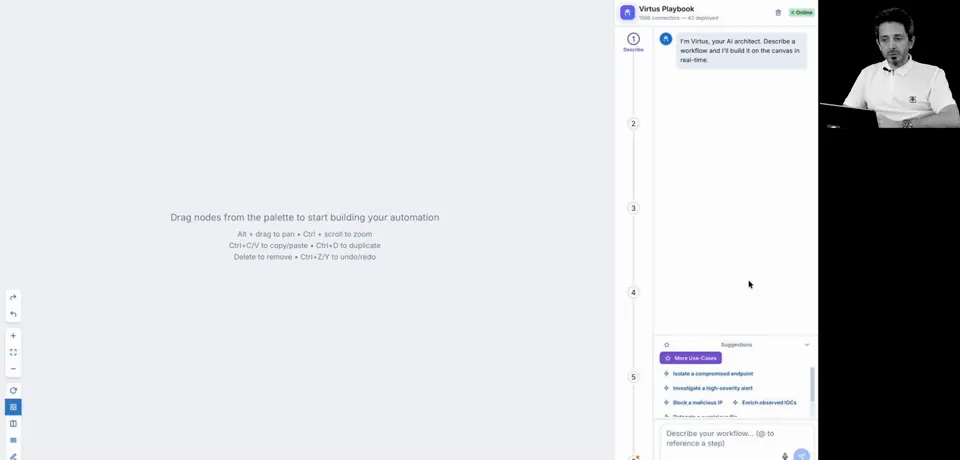
Virtus AI
Describe a workflow, then review and refine the draft.
Use an alert, webhook, email, portal request, schedule or Casebook trigger. Run a playbook manually when you need an on-demand response.
Put the human decision before the change.
Add a Human Approval node before an action that needs review. Choose the approver and timeout behavior, then connect the approved and rejected branches. The playbook follows the decision you configured.
Block the source IP
Review the reason and target before allowing the response.
Make the boundary explicit.
An approval gate is a workflow choice. It is not automatically inserted before every action.
Plan for no answer.
Configure the timeout and escalation path. The Human Approval node defaults to rejection on timeout.
Respect the target.
Built-in containment actions can check protected targets. Connector access and execution permissions still apply.
Keep routine work moving. Put the decision that needs a person at a clear checkpoint, with a defined path when approval is declined.
Know what ran, and what needs attention.
Execution History shows the run status and node-level results. Inspect inputs, outputs and errors to understand a decision or locate a failed step. A completed run does not necessarily mean a response action happened: the condition may have selected another branch.
Output passed to the condition
Matching branch selected
Approval branch selected
Connector response available to inspect
Connect the investigation.
Casebook can start a linked playbook and keep its execution context with the case.
Explore CasebookUse the actions you have.
Build around installed connectors and their supported operations. Configure access before activating the workflow.
Explore IntegrationsStart with one repeatable procedure.
Automatio is part of the SecOps Platform. Access depends on your license and role; execution also needs the appropriate connector configuration and permissions.
- 01Choose the work
Pick a recurring response with clear inputs and an expected outcome.
- 02Connect and build
Confirm the required actions, map the branches and add approval gates.
- 03Review a controlled run
Inspect node results and validate both matching and alternate paths.
- 04Activate and review
Enable the playbook deliberately and use its history to check real runs.
Questions about Automatio.
1Is a playbook the same as an AI agent?
A playbook follows the actions and branches you define. It can include agent steps, but the workflow remains explicit. Virtus AI can help draft a playbook for you to review; generating a draft does not activate it.
2Does every action wait for approval?
No. Add Human Approval nodes where your procedure needs a decision, and configure their branches and timeout policy. Permissions and applicable action policies also govern execution.
3Can we use our existing security tools?
Yes, through supported, configured connectors. Check that the operations your playbook needs are available and that its execution identity has access. A catalogue entry alone does not mean a connector is installed.
4How do we investigate a failed run?
Open Execution History to inspect the run and its node-level inputs, outputs and errors. Check the selected branch and connector response to understand where the workflow stopped or took a different path.
Have any other questions?
Talk to our team
Make your next response
a repeatable one.
Bring one procedure and the tools it uses. We’ll map the trigger, decisions and approvals into a playbook your team can review.