
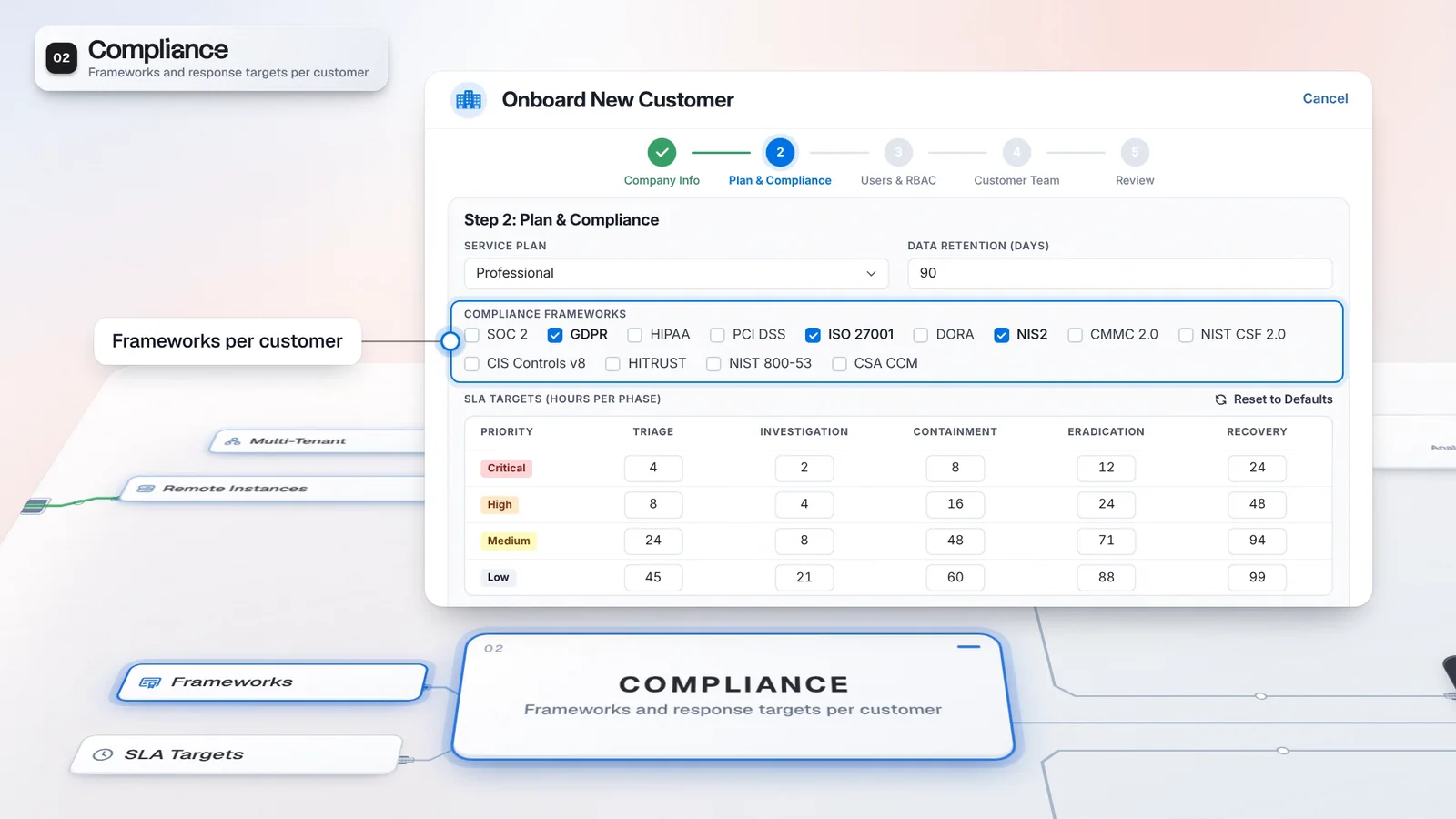
 Start with onboarding


Reuse the connector
Keep a shared connector definition with a separate profile for each customer.
Deploy a connector once, then give each customer a Tenant Profile with its own endpoint and credentials. The Marketplace brings external data and actions into SOC workflows. Configure the connection, review its test result and enable the capabilities your licensed workflows need.
 Microsoft SentinelAll Tenants
Each customer keeps its own poll cursor and statistics alongside the connection profile.
Microsoft SentinelOne connector definition serves the customer profiles.
Harbor Retail uses its own proxy agent; Juniper has a separate connection profile.
A reachable endpoint does not by itself confirm authentication.
The calling workflow’s permissions and approval rules determine what can run.
Microsoft Sentinel is one connector in Marketplace. Customers use their own connection profiles.
Northstar, Harbor Retail and Juniper each have a separate endpoint and credentials in Tenant Profiles.
Review the reported result for each profile. Reaching an endpoint does not by itself confirm authentication.
A licensed playbook or agent uses the customer connection under its permissions and configured approval rules.
A customer profile holds the connection details that differ between customers. Your team can reuse a connector without maintaining a fork for each customer environment.
Tenant Profiles give each customer its own encrypted credentials and endpoint for a Marketplace connector. A profile can use its own proxy agent or VPN, pin a vendor API version and maintain its own poll cursor and statistics. Configure and test each customer's connection before relying on its data. The catalog describes available connector actions; ingestion and execution still depend on the connector's capabilities, the services configured and the permissions of the workflow using it.
Onboarding another customer means configuring and testing its profile instead of forking the connector.
Illustrative customers. Catalog entries are not counts of live connections.
Keep a shared connector definition with a separate profile for each customer.
Resolve the connection through the customer and profile settings.
A catalog entry is the starting point. Set the customer connection and inspect the test result before depending on its ingestion or exposing actions to a workflow.
Choose the connector and review its supported capabilities.
Set the customer endpoint and credentials, stored encrypted in the Vault.
Review the reported result; host reachability does not prove authentication.
Enable supported ingestion and field mappings, then configure permitted actions in the licensed workflow.
Developer Studio authoring in the Marketplace UI requires SecOps Platform and the relevant permissions.
Connector actions serve configured playbooks and agents. MCP Gateway can expose published capabilities to authenticated callers, with execution controlled by the gateway policy.
Marketplace shows Connectors, Webhooks and Ingestion.
Use connectors with the licensed AI workflows.
Developer Studio authoring also requires the relevant permissions.
Reuse the connector definition, then validate the endpoint and credentials that belong to the customer. A tested profile gives the team a concrete connection to configure into its service.
Tenant Profiles replace a forked connector per customer.
Test Connection reports what it verified so the operator can decide what remains.
Permissions and approval rules still determine what a calling workflow can run.
Check its connector and supported ingestion capabilities.
Configure the endpoint and credentials, then inspect the test result.
Validate the action inside the licensed workflow you will use.
Choose the connector in Marketplace, configure the appropriate tenant or profile, and save its connection details and credentials. Review the reported connection-test result, then enable supported ingestion and field mappings. A reachable host does not always mean that credentials were verified; available tests and ingestion options depend on the connector.
Connector credentials are encrypted in Imperum’s server-side Vault. Tenant and profile settings determine which connection a workflow uses, so separate customers can configure separate credentials for the same tool. Viewing or changing stored secrets requires the relevant permissions; authorized administrators may manage credentials across their permitted tenant scope.
Yes. In multi-tenant environments, connector profiles hold tenant-specific endpoints and credentials. Named instance profiles also support separate deployments of the same connector within a tenant. Credentials are stored encrypted in the Vault; relevant permissions control access.
Have any other questions? Talk to our team
Review the supported connector, its customer profile and the actions your service needs.