
 Start with onboarding




A SOAR playbook turns a response plan into steps your team can run, with approvals where needed. The October 29 Polymarket hack shows what that plan must address: a hijacked page-speed script drained about $2.7 million, prompting script removal, a trading pause, session resets and refunds.
- The malicious script used trading tools already available in logged-in users' pages.
- Polymarket removed the script, cleared caches, paused trading and reset active sessions.
- Automatio runs defined response steps, with approval gates where you configure them and results you can inspect.
What happened in the Polymarket hack?
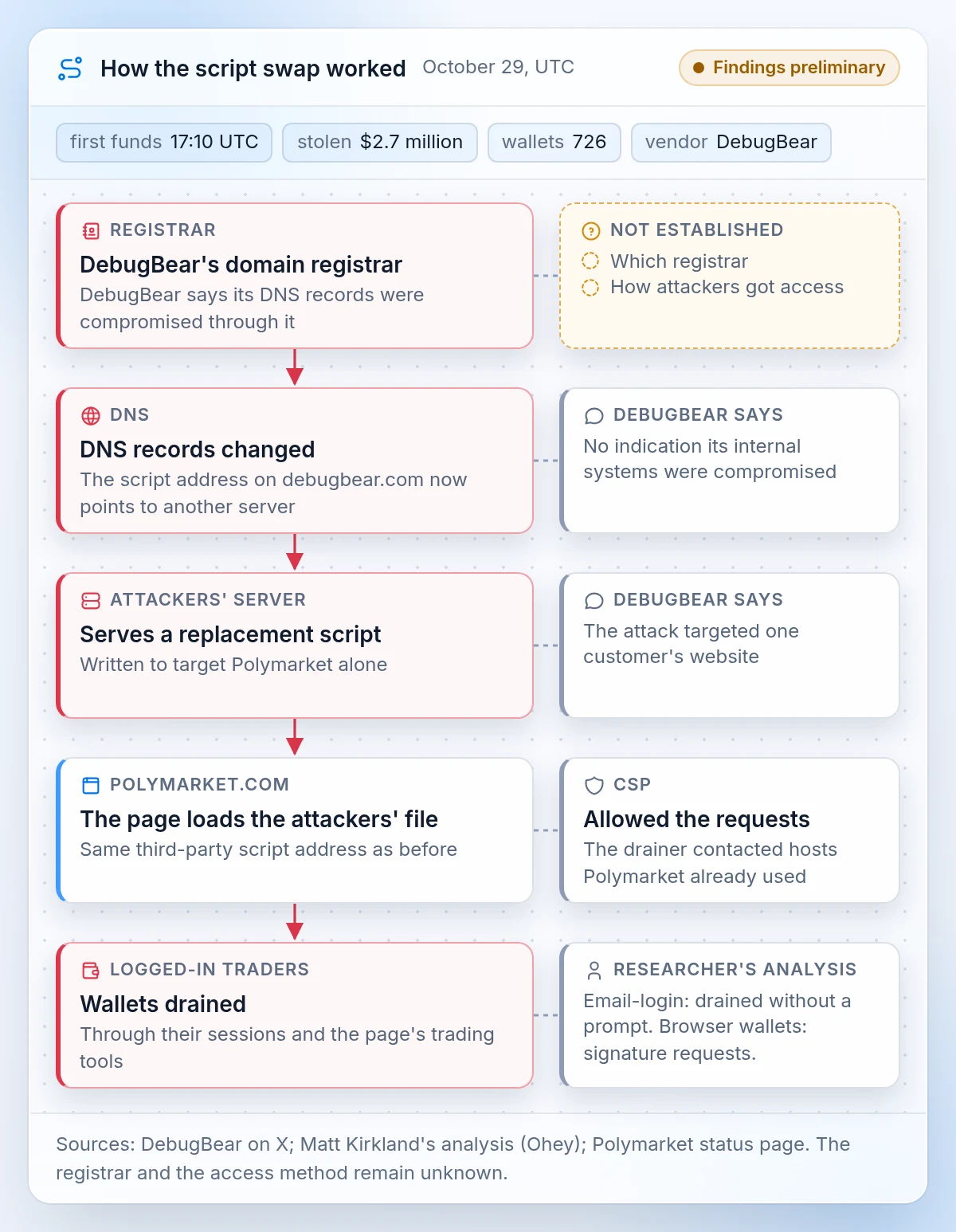
A hijacked script on polymarket.com drained logged-in traders' wallets on October 29. The first stolen funds reached the attacker at 17:10 UTC; at 17:38, Polymarket's status page reported unauthorized wallet activity.
A production build removing the script is timestamped 17:59. By the 18:05 status update, the exchange was in cancel-only mode: traders could cancel open orders but could not place new ones. The attacker's balance stopped rising at 18:11, and Polymarket marked the incident resolved at 19:05. All times are UTC.
Polymarket reported $2.7 million stolen from 726 wallets. It announced $3.9 million in repayments, including $1.2 million for losses caused by the trading pause.
This account reflects the sources available on November 4. DebugBear's findings remain preliminary; the registrar and how the attackers gained access are still unknown.
How did a page-speed script end up draining wallets?
Attackers changed where DebugBear's script address pointed, so Polymarket loaded their file. DebugBear measures page speed for real visitors, and Polymarket loaded its monitoring code as a third-party script: code supplied by another company that runs inside the page.
Domain names such as debugbear.com are registered through a registrar. The Domain Name System (DNS) directs requests for those names to servers. DebugBear says its DNS records were compromised through its registrar, redirecting the script address to a server supplying the malicious file. It has not named the registrar or explained how the attackers gained access.
According to researcher Matt Kirkland's analysis, the replacement script targeted Polymarket alone. It checked for a logged-in trader and used the trading tools already loaded in the page. Affected email-login accounts were drained without a prompt. Browser-wallet users received signature requests.
Polymarket's Content Security Policy (CSP), which controls what a page can load and connect to, allowed the requests. The drainer contacted hosts that Polymarket already used.
What did Polymarket do to stop it?
Polymarket removed the script, paused trading and reset active sessions. Its postmortem, published on the status page the next evening, described these actions and repayments:
- Removed the compromised script and cleared every cache.
- Paused trading and the relayer to stop further drains.
- Reset all active login sessions.
- Began refunding affected traders.
Pausing trading disrupts customers, and resetting sessions logs them out. Decide who can authorize those actions before an incident forces the decision.
A SOAR playbook is a response procedure executed step by step by a security orchestration, automation and response (SOAR) tool. It defines what starts the response, which actions run automatically, where a person decides and what gets recorded.
How do you build this SOAR playbook in Imperum?
Use Automatio, Imperum's playbook engine, to define the response and its approval points. The following illustrative example applies the containment steps to an automated incident response workflow. It is not a reconstruction of Polymarket's response, and the mockups use synthetic data.
Step 1: Start from a webhook or a case
A Webhook Trigger can receive a message from your script-monitoring system. Alternatively, an on-call engineer can open a Casebook case after a vendor warning, such as DebugBear's post at 18:00 UTC, and run an available playbook when permitted.
Casebook can start a linked playbook and retain its execution context alongside the investigation.
Step 2: Choose which actions need approval
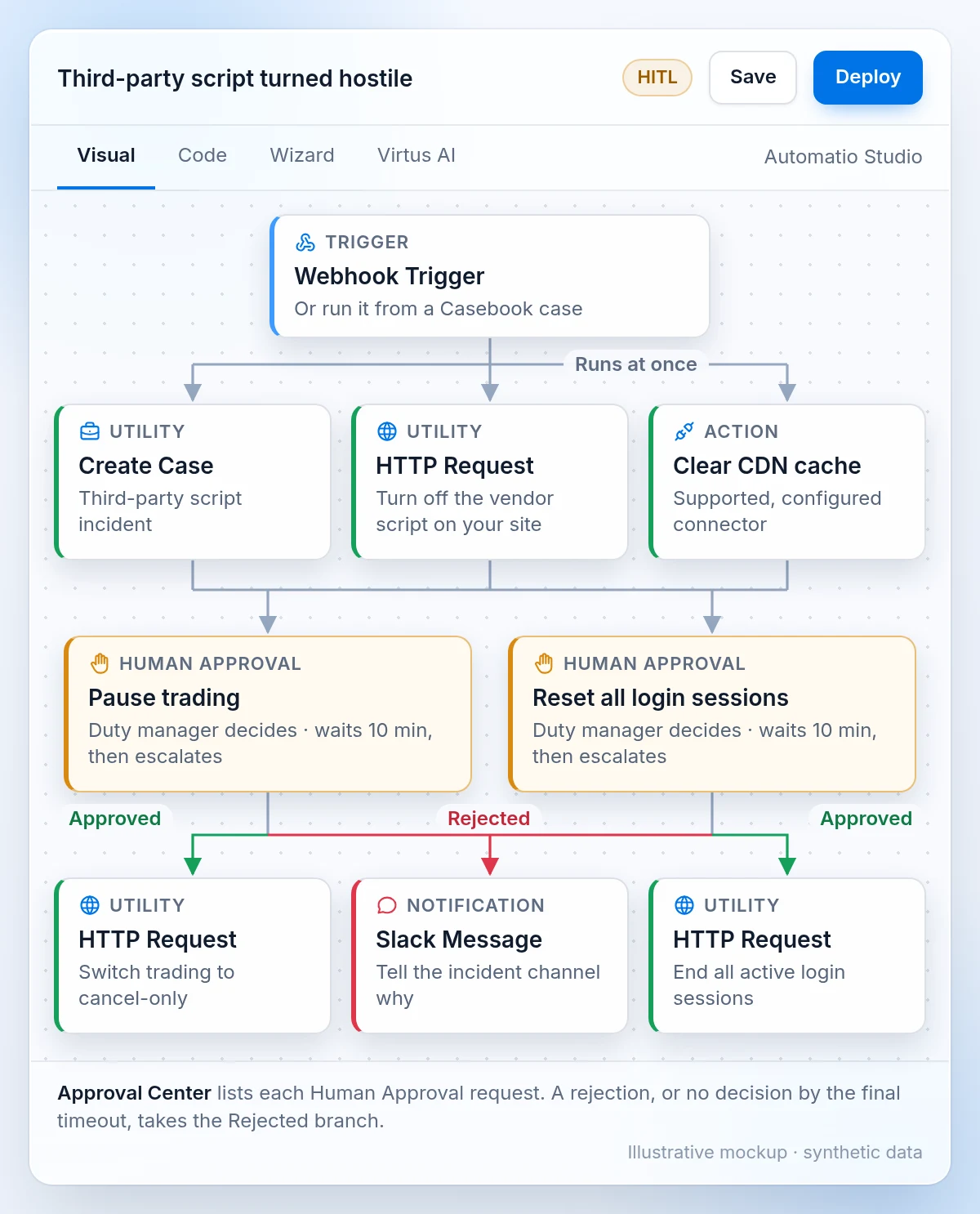
Automatio does not insert an approval gate before every action. You choose where the workflow waits for a person. For SOC automation, make that choice according to each action's impact.
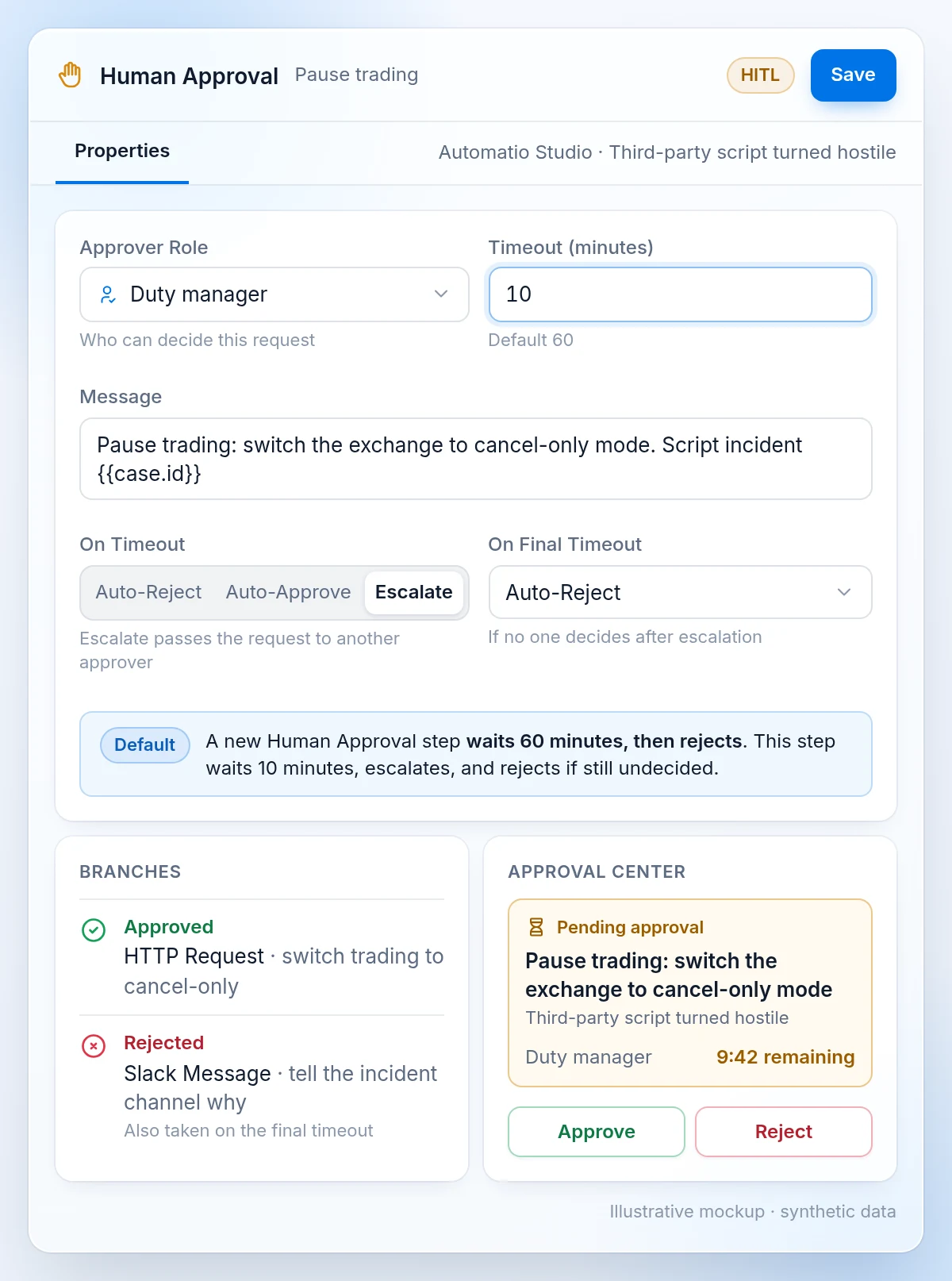
In this example, disabling the page-speed monitor and clearing its cache run without a Human Approval step. Pausing trading and resetting sessions each require one, with a designated approver role. Those requests appear in the Approval Center.
Choose the timeout deliberately. By default, Human Approval waits 60 minutes and rejects on timeout. This example uses a 10-minute wait, then escalation to another approver, with final rejection if no one responds. An approver can also reject the request.
Step 3: Connect the actions to your systems
Automatio can run supported actions through configured connectors. An HTTP Request step can call a configured application programming interface (API), such as your site's admin API. To clear a content delivery network (CDN) cache, check whether a supported, configured connector offers that operation, or use the CDN's API.
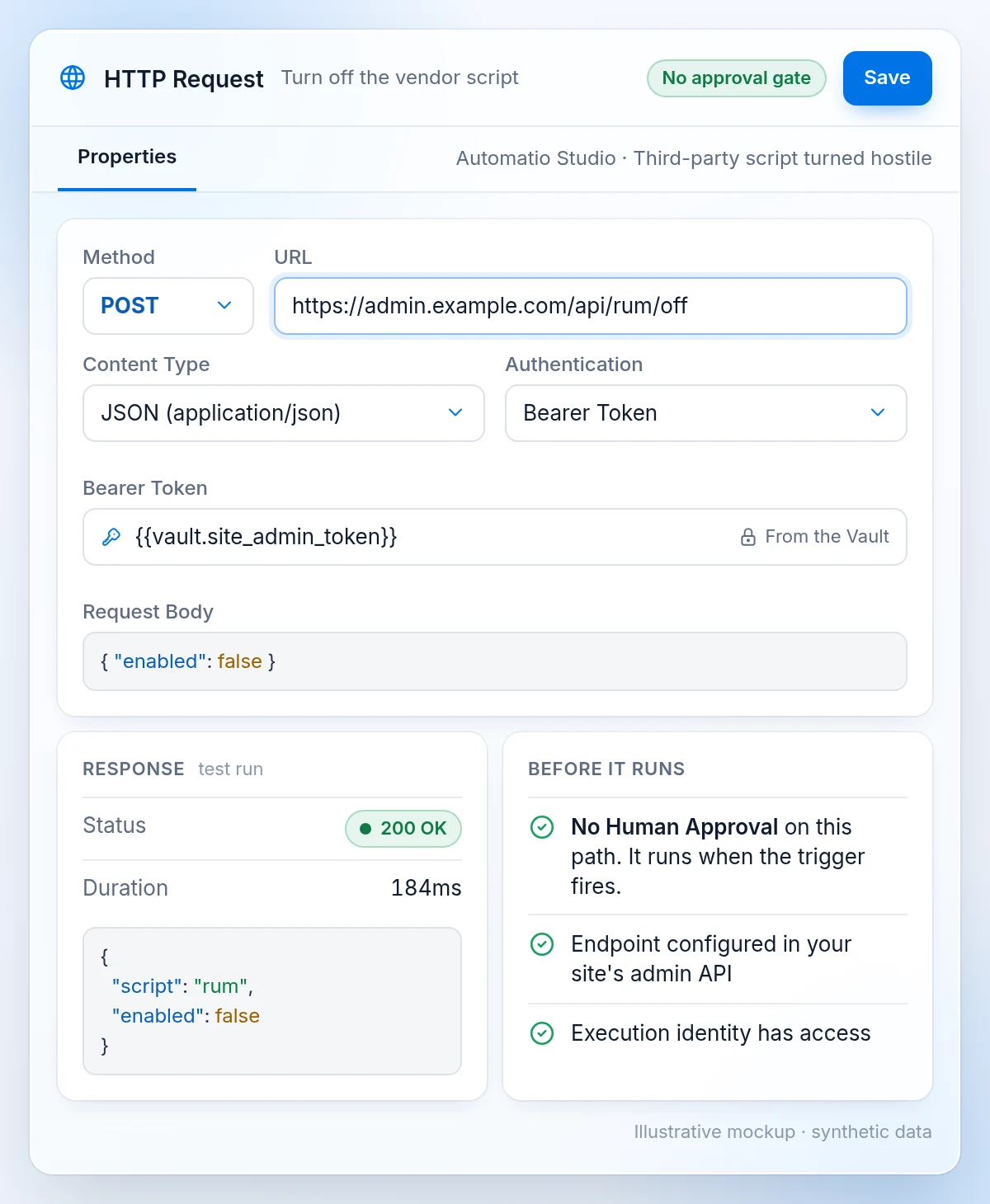
The controls must exist in your own systems. Polymarket removed the script through a new build; a switch that disables a vendor's script without a release is something your engineers can prepare. The identity running the playbook needs permission to use it.
Step 4: Check what actually happened
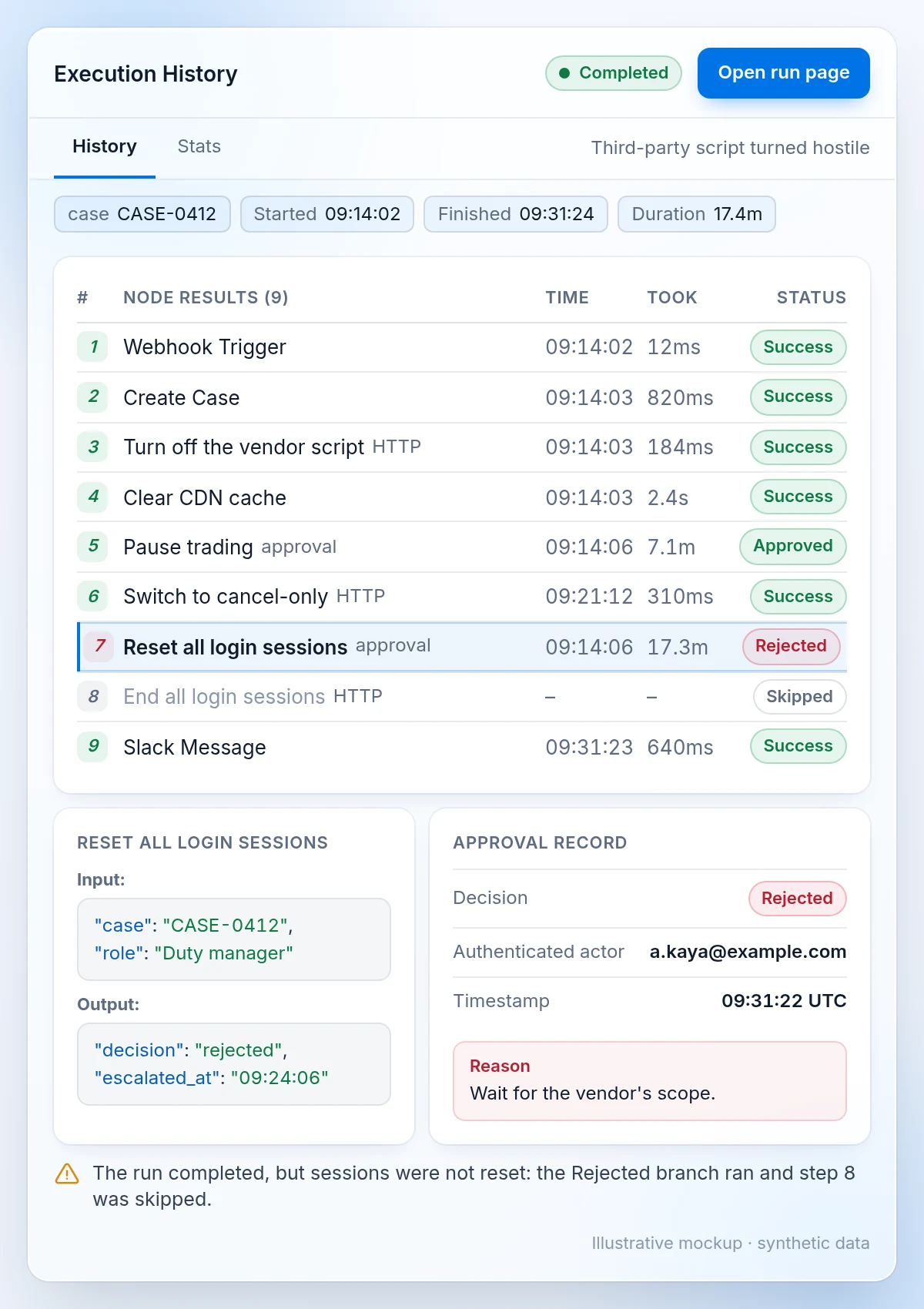
Execution History shows each run's inputs, outputs, errors and selected branches, step by step. The approval record stores each decision, the authenticated actor, the timestamp and any reason.
Check the action results as well as the overall status. A run can complete after an approval was rejected and a different branch ran. Likewise, Polymarket's 17:59 build timestamp does not establish when containment was complete, a distinction noted in one security firm's analysis.
Casebook's timeline distinguishes when an action was recorded in Imperum from when the underlying event occurred. Keep that distinction when writing the postmortem.
What should you check this week?
Start with your third-party scripts and the response controls available to your team. Use this checklist to review both:
- List the scripts your pages load from other companies' servers and the contact for each vendor.
- Review the controls Polymarket names: stronger CSP, explicit version pinning and sandboxing for third-party scripts.
- Consider Subresource Integrity (SRI), a browser check that rejects a file whose contents do not match an expected fingerprint. This is our suggestion; the reports do not establish whether Polymarket used it. The expected fingerprint must match the version you intend to load.
- Write and test the response playbook, name the approver for each disruptive action, and test both approval and rejection paths.
Questions about the Polymarket hack?
Was DebugBear itself hacked?
DebugBear says its DNS records were compromised through its domain registrar, causing its script address to serve an attacker's file. It reported no indication that its internal systems were compromised and said the attack targeted one customer's website. These findings are preliminary. The registrar has not been named, and how the attackers gained access remains unknown.
Did Polymarket users have to click anything to lose money?
Not always. The malicious script reached logged-in users who had polymarket.com open during a window of about an hour on October 29. Affected email-login accounts were drained without a prompt, and users did not need to enter a password. Browser-wallet users received signature requests; a request alone does not establish that a transfer completed.
Would a SOAR playbook have stopped the Polymarket drain?
The public evidence does not establish that a SOAR playbook could have stopped this attack. A playbook needs someone or something to detect the problem and trigger the response. Page controls such as CSP and version pinning address what code can run. A response playbook defines the actions, approval decisions and records your team needs once a problem is detected.