
 Start with onboarding



A tenant, without another installation
Add a customer to the existing multi-tenant deployment through onboarding.
Turn on multi-tenant mode and onboard each new customer into the deployment you already run, with no new installation. Alerts, cases, connector profiles and reports carry the customer's tenant, so your team switches customers without switching consoles.
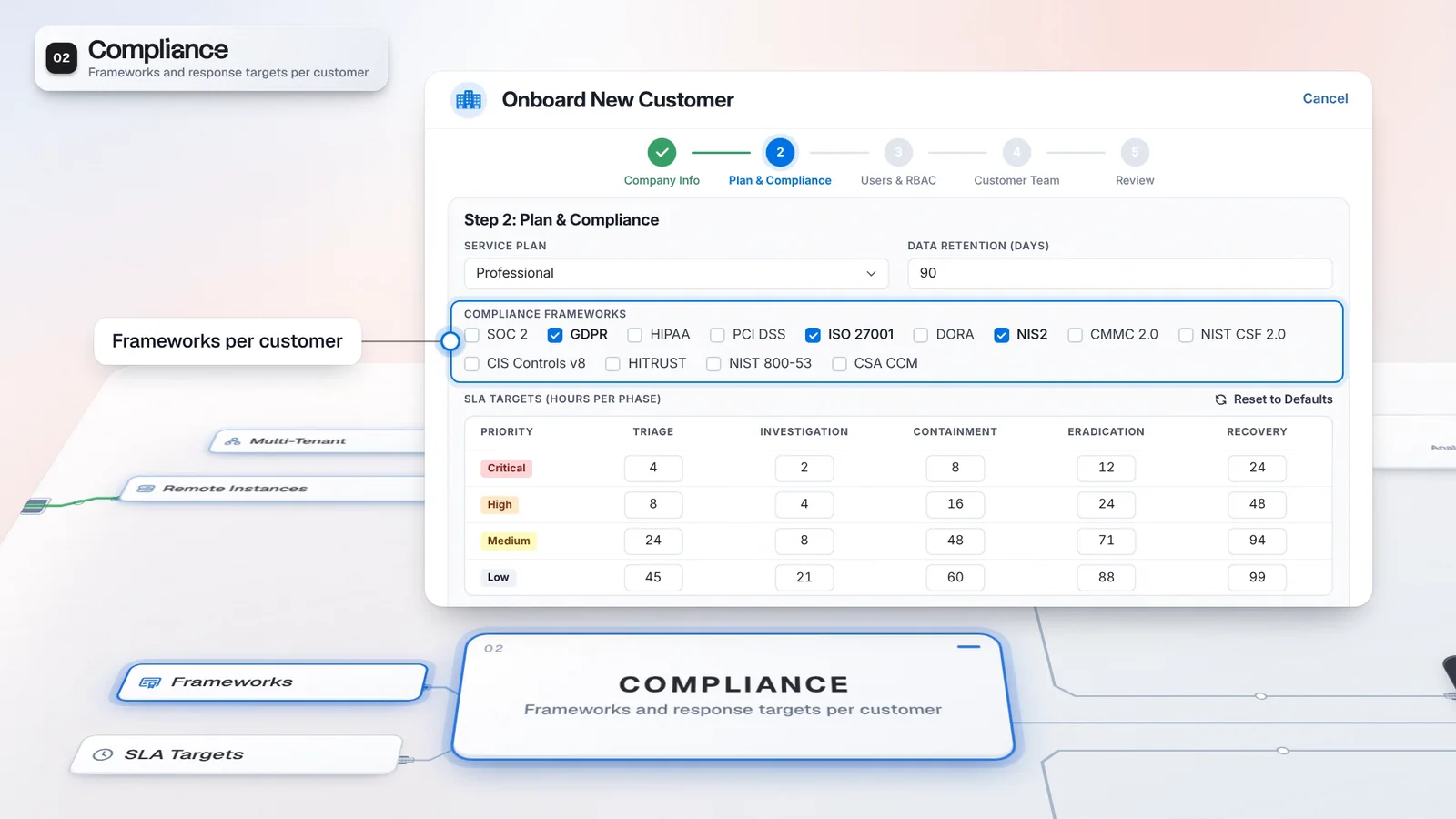
Onboard New Customer adds a tenant to the existing deployment.
Onboard New Customer adds a tenant to the existing deployment.
Continue with customer contacts and supported tool connections.
Supported views follow the selected customer and the operator’s authorized scope.
 Microsoft Sentinel
Supported views follow the selected customer and the operator’s authorized scope.
Microsoft SentinelTenant ProfilesMulti-tenant mode adds the tenant selector and customer-scoped work.
Juniper joins the Customer Tenants list through customer onboarding.
Select Northstar to work with that customer’s alerts and context.
Cases, connector profiles and reports retain the selected customer context.
A new customer needs its own working context. Multi-tenant mode gives it a place in your existing deployment, with onboarding and separate connector profiles instead of another console for the team to learn.
Enable Multi-Tenant Mode in Settings to activate the tenant selector, customer onboarding and tenant columns across the workspace. Alerts, cases, connectors and reports carry that context. Each customer can use its own connector credentials and configuration, while authorized operators work across their permitted customer scope. Select a tenant before opening its records and review its team in Tenant Architecture.
Every new customer is an onboarding step, not another installation.
Illustrative customer and configuration. Not customer performance data.
Add a customer to the existing multi-tenant deployment through onboarding.
Use customer-specific endpoints and credentials in a connector’s Tenant Profiles.
Set up the customer before the analyst starts work. The mode brings tenant controls into the workspace; the customer’s profiles and permissions determine which connections and records the team can use.
Open Settings, then Multi-Tenant and its Overview tab to enable multi-tenant mode.
Use Onboard New Customer to add the customer to the tenant hierarchy.
Configure the customer’s endpoint and credentials on each supported connector.
Select the customer in the header, then review its alerts and case work.
Confirm the required modules in your license. Provider visibility follows authorized customer scope.
Casebook holds the investigation record, Integrations supplies the customer’s tool access, and Reports uses the selected data scope. These surfaces let the team carry customer context from intake through review.
Multi-Tenant is a default module of this edition.
Confirm a license that covers provider operations.
Multi-tenant operations are part of this tier.
Each new customer is a tenant and a set of connection profiles, not another deployment to run. Analysts keep one workspace, and the selected tenant supplies the context for the work they open.
Customer onboarding reuses the existing multi-tenant deployment.
The header selector makes the active customer visible while permissions govern access.
Teams and contacts sit against the selected tenant in Tenant Architecture.
Create one customer in the hierarchy.
Configure its profiles and review each connection-test result.
Follow an alert, a case and a report in the customer’s selected context.
Multi-tenant operations give providers customer-scoped views, connector profiles and onboarding workflows. Authorized operators can work across their permitted customer scope, while the self-service portal offers customer access to requests and cases. Configure tenant permissions and customer workflows to match the service you deliver, and confirm the required modules in your license.
Turning on multi-tenant mode activates the header’s tenant selector, tenant columns across alerts, cases, connectors and reports, customer onboarding and per-tenant connector mapping. Credentials and connector profiles gain per-tenant copies.
Have any other questions? Talk to our team
Bring one customer and walk through its onboarding, connector profiles and tenant-scoped work with the Imperum team.